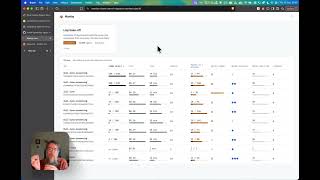
Full Transcript

·YouTLDR

📊 COMO MAYORIZAR EN EXCEL 📊

10:39856 summary words · ~4 min readEnglishBy STEP TO BUSINESSTranscribed Jul 17, 2026
Analyze another video with Pro30-day money-back guarantee
Summary

To post accounts to the general ledger in Excel quickly and without errors, filter journal entries to two-digit accounts, copy them to a ledger sheet, sort by account, and use Excel's Subtotal tool to sum debits and credits per account.

Doing this replaces hours of manual addition with a verified process that catches transcription errors before they corrupt the trial balance.

Section summaries

0:00-0:40

Intro and objective

watch

Wesley opens by stating the frequently asked question: how to quickly post to the general ledger in Excel. He says the video will explain step by step how to post to a two-digit account ledger. The company records shown have no sales, purchase, loan, or payment entries, only prepared calculation helpers. He frames the goal as feeding the trial balance later.

  • Video teaches two-digit account majorization in Excel
  • Ledger posting is a prerequisite for the trial balance

Sets the scope and purpose of the entire tutorial.

0:40-1:44

Why post and first equality test

watch

Wesley explains that posted accounts enable the trial balance and final results. He points to where account codes and totals will go. Before expanding, he recommends a first test: sum the entire debit column and compare to credit. Dragging the formula shows debit equals credit, confirming balanced source totals of 130,400 example for account 10.

  • Ledger is the starting point for trial balance data
  • Debit must equal credit before posting begins

Establishes the validation step that protects all later work.

1:44-2:57

Copy and paste values

watch

He warns not to touch the original entries because formulas could distort information. He makes a copy via right-click move/copy to end, creating 'Entries 2'. Then he selects all, copies, and pastes as values so formulas are gone and only current values remain for safe editing.

  • Duplicate sheet before editing to preserve originals
  • Paste as values removes formula risk during ledger work

Critical safe-workflow step repeated in real tasks.

2:57-4:49

Manual problem and two-digit filter

watch

Wesley notes account 10 appears in debits and credits across the sheet; manual addition would take hours and risk paper-copy errors causing unbalanced totals. He selects all data, applies Data > Filter, and deletes unneeded rows from the copy. He filters to keep only two-digit accounts, defining two digits as accounts, three as sub-accounts, four as divisional, five as subdivisional, keeping solely accounts.

  • Manual posting is slow and error-prone
  • Filter keeps only two-digit account rows

Shows the efficiency gain and the exact filtering rule used.

4:49-6:23

Build ledger sheet and format

watch

After filtering, he copies the two-digit rows with amounts and pastes as values into a new 'General Ledger' sheet. He applies centered bold formatting, freezes panes, and formats amounts as soles. The temporary filtered sheet is deleted since the original entries remain the source of truth.

  • Filtered rows become the new ledger sheet
  • Formatting and freeze panes improve readability

Completes the data transfer into ledger structure.

6:23-8:25

Sort and Subtotal setup

watch

Back in the ledger, he filters again and sorts the account column least to greatest so all 10s, 12s, 14s group together. Rather than calculator addition, he selects columns, goes to Data > Subtotal, sets 'for each change in account' to Sum debit and credit (checking credit which was unselected), and clicks OK.

  • Sort by account groups identical codes together
  • Subtotal on account change automates sums

Core Excel technique that replaces manual addition.

8:25-9:32

Totals and reconciliation

watch

Subtotal produces per-account debit/credit totals; clicking the margin collapses to just totals. He colors the grand total yellow and compares it to entries totals. Difference of 0 means posted correctly; he confirms both sides balanced, proving accounts are posted.

  • Collapse view shows only account totals
  • Grand total difference of 0 confirms correct posting

Provides the verification method that closes the process.

9:32-10:33

Outro and next steps

optional

Wesley notes the explained pace took a while but practice yields a ledger in under 5 minutes. Next step is sending account codes and ledger totals into the trial balance columns, a separate topic. He points to a description link for a trial balance tutorial and thanks viewers.

  • Ledger can be built in under 5 minutes with practice
  • Trial balance tutorial is linked separately

Sign-off and pointer to other content, not core method.

Key points

  • Verify debits equal credits before posting — Run a sum of the full debit and credit columns of the journal entries and confirm they are equal before any ledger work begins.
  • Work on a formula-free copy — Duplicate the entries sheet, paste values only to strip formulas, and delete unneeded rows so original data stays intact and untouched.
  • Filter to two-digit accounts only — Using Excel's filter, keep only two-digit account codes (accounts) and exclude three-, four-, and five-digit sub-accounts and divisions.
  • Subtotal by account for instant posting — Sort the filtered ledger by account ascending, then apply Data > Subtotal on 'change in account' using Sum for both debit and credit columns.
  • Reconcile grand total to entries — The Subtotal grand total of debits and credits must equal the original entries totals; a difference of 0 confirms correct posting.
having the accounts posted to the general ledger will help me prepare my trial balance Wesley
if we do this manually it will take us a lot of time, possibly many hours Wesley

AI-generated from the transcript. May contain errors.

0:00

Okay, another

0:02

frequently asked question is, "Wesley, how

0:05

can I

0:07

quickly post to the general ledger using Excel?" It's very

0:09

simple.

0:10

In this video, I'm going to

0:11

briefly explain, step by step, how to post to the general ledger

0:14

in Excel to a two-digit number. Okay, let's get started. So,

0:18

we already have

0:20

all the accounting records of a

0:22

company here. As you can see, there are no sales,

0:25

purchase, or loan entries, no

0:28

payments, and over here are some

0:32

calculations we've done to

0:34

help us record the

0:36

correct amounts. Okay, now it's time to post to the

0:40

general ledger. Why do I need to post to the general ledger?

0:42

Because having the accounts posted to the general ledger

0:44

will help me prepare my

1:01

trial balance. This is where I'm going to put the code for each account, and this is where the totals from the general ledger go. And of course, this is the starting point for filling in all the other data that this trial balance requires, and finally, of course,

1:03

obtaining our final result.

1:06

In this video, we'll focus

1:09

only on the general ledger. If you want to

1:12

learn how to fill in each of these

1:14

trial balance columns, I'll

1:16

leave a link in the description of this video

1:18

so you can access that

1:20

tutorial. Okay, first things first, so...

1:22

We're focusing on these

1:25

journal entries. We have all the company's records,

1:27

and from here we're going to

1:30

start working. What I recommend you do

1:32

before starting to expand

1:33

is a first test. Okay, what is that

1:37

first test? It's the one that tells you

1:40

that everything in the debit column

1:42

has to be equal to everything in the credit column.

1:44

Well, let's add up

1:46

the entire debit column.

1:49

Let's drag from here down

1:51

everything we find there.

1:54

Perfect. And I find the formula over here

1:57

to the right,

2:00

and precisely, as we can see,

2:02

we have equality, right? The debit is equal to the credit.

2:06

These are my totals.

2:10

Very good, we have it, guys. Now

2:14

we're going to start working from

2:16

here. I don't want to touch this at all

2:19

because if I touch anything, if I add

2:22

something, and this already has

2:24

formulas in it, it could

2:27

distort the information. So

2:29

we're going to make a copy of this sheet.

2:30

Okay, I right-click, move or copy,

2:34

create a copy, and move it to the end. There it is,

2:37

Entries 2. This is the copy, and this

2:41

is the original. There are no changes

2:43

because it's an identical copy. Okay,

2:46

before moving anything here, I'm also going

2:49

to select everything. We're going to copy and

2:52

paste them as values ​​so

2:54

we can forget about the formulas and everything will

2:56

stay with the values ​​it

2:57

currently has. That's it, what else are we going to

3:01

do? It's time to start with the

3:04

addition and subtraction. We know that the main

3:06

action consists of knowing how much we have

3:08

in total in the debits and credits of a

3:10

certain account, right? For example, I

3:14

want to know how much I have in the debits and credits

3:15

of my account 10. At the moment I

3:18

have 130,400 in the debits, but I keep going

3:21

down and I'll find

3:22

account 10 again right here,

3:25

but look, now in the credits, I keep going

3:29

down and I find

3:30

account 10 again in the credits, and so on. Of course,

3:34

if we do this

3:36

manually it will take us a lot of

3:37

time, possibly many

3:40

hours, and that's assuming we were

3:43

able to add the numbers exactly as they are

3:45

here, because it could happen that

3:48

one of these numbers was transferred from a

3:49

notebook or a piece of paper with some kind of

3:52

error,

3:53

and well, this will lead me to a total that's off,

3:55

and then the headache

3:57

of trying to find where the error is,

3:59

right? So look

4:03

how we... I was saying we're going to generalize to

4:05

two digits, so the first thing we're

4:07

going to do here is filter all of

4:10

this. Okay, we're going to select all the way

4:13

down

4:15

and filter. We'll go to data and

4:18

filter. Perfect. We're going to delete what we're

4:21

not interested in. We're going to delete all of

4:24

this from here. Here I can delete what I

4:26

want because I'm simply working with

4:28

a copy of the original.

4:31

Very good. Now, what was the objective?

4:34

Generalizing to two digits. So we're going

4:37

to filter only accounts. Okay, and

4:40

we know that accounts have two digits,

4:42

sub-accounts have three, divisional accounts have four, and

4:45

subdivisional areas have five. But in this case, we

4:47

only want accounts.

4:49

Perfect.

4:51

We keep going down

4:54

and we start

4:57

filtering. Okay, only to two digits.

5:02

Very good. And I think we're done there

5:04

because then it goes to three

5:06

digits, four digits, five digits, and

5:10

well, all the levels come up. The only thing I'm

5:12

interested in is two digits.

5:14

I'm going to accept the filter,

5:17

and in this way, look, we've obtained

5:20

only the two-digit accounts with

5:24

their respective amounts in both the debit and credit columns. Okay,

5:25

perfect. Now I'm going

5:29

to open a sheet

5:31

called "General Ledger."

5:33

Ready, and I'm going to copy everything I just

5:36

got after filtering.

5:38

We're going to select this whole little box,

5:41

everything up to here. I'll

5:44

copy it and paste it as values

5:47

here. Very good, that's it.

5:49

Let's give it a

5:52

suitable format so it doesn't look messy. Let's see

5:56

what kind of format we can give it.

5:58

We'll center it and make it bold.

6:03

Very good. I'll

6:04

center this too, and that's

6:07

perfect. Let's also freeze it

6:11

here,

6:12

and we have this. To be able to

6:14

verify what amounts we

6:16

have, we're going to format everything in

6:20

soles. There, we have it. Very

6:23

good.

6:24

Now, we don't need this little sheet here anymore.

6:27

Let's delete it. Hey,

6:30

but why? Of course, because here we

6:32

have the original, and this is the one we're

6:35

interested in. Okay, let's go back to the ledger,

6:37

which is the one we just created. And now

6:40

we're going to do the following:

6:42

we know that

6:44

leading consists of knowing how much there is

6:47

in column 10, both in the debit and credit columns. Let's see

6:50

how much there is in column 12, in column 13, in column 14, column 16,

6:53

and so on. Well, what we're going to

6:56

do is filter this again, and

6:58

look what's going to happen:

6:59

data filter. There it is. We're going to the

7:04

account column, and we're going to sort from least to

7:07

greatest.

7:08

Look what's happened! I have all my

7:12

10s at the beginning, all of them, without missing a single one. Let's

7:18

continue, then all my 12s, then

7:22

all my 14s, and so on. Obviously, it's going to

7:25

be much easier to add up

7:27

how much I have in each one, both the

7:29

debit and credit columns. Right, perfect. But it's not like we're going to

7:33

take a calculator and

7:35

say, "Okay, now that it's

7:36

easier, I'm just going to transfer the

7:38

amounts and that's it." No, because Excel

7:41

continues to help us since we have a very, very

7:44

good tool. What we're

7:46

going to do is select

7:49

all these columns and go to

7:53

where it says "Data." Once in "Data," we

7:56

go to where it says "Subtotal." Okay, so what it

8:00

tells us here is that for

8:02

each change in account—uh-huh, look, for

8:05

example, 10, 12, 14, 16—okay, for each change

8:09

in account, I want to use the sum

8:13

of the debit and credit columns. Here,

8:16

only the credit column is selected,

8:17

but I also want the subtotal, so

8:19

I check it,

8:21

and that's it. Now I click "OK," and

8:25

the magic will happen

8:26

immediately. Let's see,

8:29

there it is. Look what happened! We have the

8:32

total for account 10, what's in the debits and credits, and the

8:35

total for account 12, what's in the

8:37

debits and credits. If you only want to see

8:40

the totals, click

8:43

here. And look what just happened:

8:46

we have the total for account 10,

8:49

we have the total for account 12, and so on

8:51

for each account.

8:55

Now, if you want to verify that what you

8:57

just did is correct, go

8:58

to the last part and you'll get the

9:02

grand total. Look at this here;

9:05

we're going to color it yellow. Look,

9:07

there it is.

9:10

What do I have to do? How do

9:12

I check that everything is okay?

9:14

This is the

9:16

grand total, and it has to balance with what

9:20

you have here in the entries. Does it balance or not?

9:22

If the difference between these two

9:25

amounts is 0, it balances. Oh, it gave me 0, and here it

9:28

's also completely balanced.

9:32

It means that I just posted my

9:34

accounts correctly. This

9:37

way, we know that when we

9:39

have the total for account 10, there

9:42

should be a debit for account 12, that is, each account is posted.

9:46

Now, of course, I took a while. It took

9:48

a little while to work through because I

9:50

had to explain it step by step, but

9:52

with practice and by working on

9:55

this more frequently, you'll see that you

9:58

can easily create a general ledger in

10:00

less than 5 minutes. Then, the

10:03

next step would be to send each of the

10:06

accounts here in this column and the

10:09

totals from the general ledger, which are these here,

10:12

to this column here. Then we can start

10:15

filling out our trial balance,

10:17

but that's a whole other topic. As I

10:19

mentioned, if you'd like to see

10:22

a video on how to create a

10:23

trial balance from scratch, you can

10:25

access the link I'm leaving in

10:27

the description of this video.

10:29

Thank you all very much for your attention, and a big

10:32

hug to everyone.

10:33

[Music]

Continue with YouTLDR

Analyze another video with Pro

Process a new video, search every timestamp, compare sources, and keep the result in your library.

Get Pro — $12/month30-day money-back guarantee

More transcripts

Explore other videos transcribed with YouTLDR.