Como Actualizar Un Repositorio En Github Desde Visual Studio Code 2026
Continue with YouTLDR
Analyze another video with Pro
Process a new video, search every timestamp, compare sources, and keep the result in your library.
More transcripts
Explore other videos transcribed with YouTLDR.

วิกฤติการเงินฝรั่งเศส ลามทั่วยุโรป : คนเคาะข่าว 12-10-69
News1 · Thai

#1 Biggest Mistake Blocking Your Breakthrough with Codie Sanchez
Tony Robbins · English

Tony Robbins on the REAL Reason 99% of People Stay Stuck | The Iced Coffee Hour
Tony Robbins · English

LEILÃO TOUROS FAZENDA JACAMIM • EDIÇÃO PRIMAVERA - CAMPO GRANDE/MS - RURAL PLAY
Rural Play · Portuguese (Portugal, Brazil)
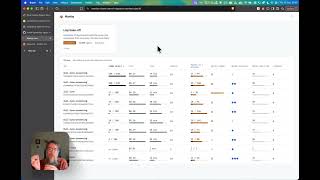
Agent Swarm Observability & Mantiq POC
Alex Strick van Linschoten · English

โมเม้นน่ารัก เนเน่กับวง A7X แฟนคลับแซว ฝันเป็นจริง! ประกบไอดอลโลก
สรุปสั้น · Thai

Jev: The AI That Makes Decisions, Not Text - and Why It Changes Everything (Diogo Almeida)
The MAD Podcast with Matt Turck · English

Leilão Presencial Touros Provados Santa Nazaré
LANCE RURAL OFICIAL · Portuguese (Portugal, Brazil)

Leilão Virtual Matrizes Vera Cruz – 3° Etapa
LANCE RURAL OFICIAL · Portuguese (Portugal, Brazil)

Leilão Virtual Fazenda Gramado – Etapa Touros
LANCE RURAL OFICIAL · Portuguese (Portugal, Brazil)

พูดเยอะไม่เท่ากับสื่อสารเป็น แล้วต้องพูดแบบไหน คนถึงเข้าใจสิ่งที่เราต้องการจริง ๆ ? | Woody Talk
WoodyWorld · Thai

الصندوق الأسود: المعتقل السابق في غوانتنامو فايز الكندري - ج2
Ammar Taqi | عمار تقي · Arabic