0:00
Is it possible to go from zero idea to a
0:02
finished video like this in under two
0:04
hours? Well, with what Claude has put
0:07
out in just the last few weeks, I think
0:09
the answer might be yes. And today, I'm
0:11
going to try to prove it. Because if
0:12
you're like most business owners, time
0:14
is the one thing that's kept you off of
0:16
YouTube. But I figured out a brand new
0:18
Claude-based start-to-finish video
0:20
workflow that can change all of that.
0:23
It's built on their newest smartest
0:25
models, a brand new tool integration,
0:27
and a few of their newest features. So,
0:29
here's the test. I'm going to run
0:31
through the entire workflow live with
0:33
you today with a clock running to see
0:35
exactly how long it takes me to finish a
0:37
new video. And I'm starting with
0:39
absolutely nothing. I don't even have a
0:41
video idea yet. But if my math is right,
0:44
I'm going to end up with a fully
0:45
researched, fully recorded video
0:48
complete with pro-level visuals in less
0:50
than two hours. Now, this isn't going to
0:52
work for entertainment or faceless
0:54
channels, but this exact type of video
0:57
is working like crazy right now for real
0:59
experts who want to become known in
1:01
their niche and attract clients. That's
1:03
what we're making. All right, I'm ready
1:05
as I'll ever be, so let's start the
1:07
clock. The first thing I need to do here
1:10
is decide on my video topic and title,
1:13
but not just anything is going to do. We
1:14
want to be smart about this and
1:16
>> find something that has a really good
1:18
chance of ranking on YouTube without a
1:20
lot of competition that I can actually
1:22
cover well and is going to properly
1:25
convey my expertise. Because the whole
1:27
point of these videos is to get clients
1:29
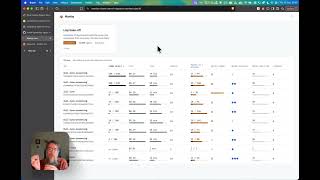
and customers, right? Now, VidIQ just
1:31
released an integration with Claude, and
1:33
that integration lets you combine
1:35
Claude's reasoning power with everything
1:37
that VidIQ knows about your channel and
1:40
all your competitors' channels. And
1:41
honestly, it knows pretty much
1:43
everything under the hood over on
1:45
YouTube. This makes it an exceptional
1:47
research assistant, way better than
1:49
VidIQ or Claude would be on their own.
1:52
And the cool thing is this works whether
1:54
or not you already have an established
1:56
channel or if this is your very first
1:58
video, it can still find the best video
2:00
opportunities for you. So, the first
2:02
thing you need to do is sign up for
2:03
vidIQ, and I do have a link for that
2:05
down in the description. And once you've
2:07
got that set up, we can connect it to
2:09
our Claude. Now, to do that, uh just be
2:12
logged into your vidIQ dashboard, go
2:18
MCP along the top here, and then just
2:21
you want to make sure Claude is
2:23
selected. Then, you're just going to
2:24
copy this URL. Then, go back over to
2:28
Claude, and in the sidebar, you want to
2:30
choose customize, connectors, then the
2:33
little plus sign, and add custom
2:36
connector. I'm just going to name it
2:39
and then I'm going to paste in the link
2:41
that we uh copied before. Now, click
2:43
add. It's going to ask me to connect it
2:45
to my vidIQ account, so just click that,
2:47
then authorize, and now you can see it's
2:50
all set up. So, now I'm just going to
2:52
start a brand new chat, and this is
2:54
where I'm going to ask Claude to work
2:56
with vidIQ to do my topic and title
2:58
research for me. And it is a pretty long
3:01
and detailed prompt, but don't worry, I
3:02
put together a downloadable companion
3:04
guide that has every prompt and every
3:07
step in this whole process, so grab that
3:09
in the description below. Okay, so
3:11
pasting the first prompt in here, now
3:14
I'm just going to go down to the bottom
3:15
and fill in all my own personal stuff
3:17
that's personal to me and my business,
3:19
you know, what I offer, who I help, and
3:21
the problems I solve, that kind of
3:23
stuff. Then, we let it run. And while we
3:25
wait, here's what's happening. So,
3:28
Claude is talking it out with vidIQ
3:29
behind the scenes, pulling in real
3:32
YouTube search data, and doing all the
3:34
research for me. This part alone would
3:37
literally take me all day if I were to
3:39
do it right. Okay, so that took about 7
3:41
minutes, and look at this. Really solid
3:44
choices, these are all based on real
3:46
searches that my own audience is typing
3:48
into YouTube right now.
3:49
>> All All so it gives me the proposed
3:51
titles, the keyword phrase for each one,
3:53
and the best [music] part, it's showing
3:55
me the real search volume and how much
3:57
competition each one has, and an overall
4:00
opportunity score. The higher that
4:02
number, the closer it is to 100, the
4:04
better. I like this one, how to get more
4:06
coaching clients in the next 90 days.
4:08
It's got good numbers, low competition,
4:10
and I definitely have my own, you know,
4:12
tips and opinions about this topic. But
4:14
if you didn't like anything it gave you,
4:16
or if you felt they were wrong somehow,
4:19
all you have to do is tell it what you
4:21
don't like about them, and it's going to
4:22
get closer on the next round. But I'm
4:24
happy with this one, so let's take it
4:25
and move on to step two. Having the best
4:28
topic and title in the world, but with
4:30
generic execution, still gets you a
4:32
generic video, the same one any of your
4:35
competitors could make. But I have a fix
4:37
for that, and it brings us to our next
4:39
Claude update that we're going to use,
4:40
skills. If you've never used a skill in
4:43
Claude before, um just think of it like
4:46
Claude on its own being like a game
4:48
console, and a skill is the cartridge.
4:51
You know, you slot it in, and then the
4:53
whole machine becomes a different game.
4:55
And the cool thing is, you can collect
4:56
as many as you want, because the console
4:58
never forgets how to play a single one
5:00
of them. So, how's a skill going to help
5:02
me plan this video? Well, I happen to
5:04
put together not one, but two skills
5:07
that together are going to help you do
5:09
it in a really specific way that just
5:11
makes the whole process super easy, and
5:14
kind of fun, too, while Claude takes the
5:16
lead on this. And the two skills you
5:18
need are both inside that same companion
5:20
guide down in the description, so you
5:22
want to download them from there.
5:24
>> So, to install these, you're just going
5:25
to go to the left panel, and then click
5:27
customize, then skills, the plus sign,
5:33
upload skill. And I'm just going to drag
5:35
both of mine in, and now we're ready to
5:37
start. The first skill here, it's going
5:39
to turn your rough ideas into a fully
5:41
fleshed out outline that goes way past
5:44
just being a simple information video,
5:46
and it actually is one that positions
5:48
you as the expert you are. Here's how it
5:51
works. I'm going to start just by giving
5:53
it the title of my video. It's important
5:54
that it knows that. It's good context.
5:57
I'm just going to start brain dumping.
5:58
I'm going to type in everything that I
6:00
already know that I would want to bring
6:02
to this topic. Tips, opinions, stories
6:05
about me, stories about past clients.
6:08
And I'm not worrying about any kind of
6:09
structure or order here. I'm just
6:11
getting it all out of my head and into
6:14
the chat. And then when I'm done, this
6:16
is the important part. This is what
6:17
makes the skill jump into action. I just
6:20
type something like, "Help me flesh this
6:23
out using the outline creation skill."
6:26
Now, the skill starts interviewing me.
6:28
It's asking clarifying questions about
6:31
my stances, my opinions, and how I
6:33
arrived at them. This is the step that
6:35
makes this into a real thought
6:37
leadership video. You know, your
6:38
opinions and the stories behind them are
6:41
things that none of your competitors can
6:43
ever copy. And when your video says
6:45
something different from everyone
6:47
it's also a sign for YouTube, right? It
6:49
treats it as much more unique, and it
6:51
pushes it further as a result. Now,
6:54
before I answer the first question, I'm
6:56
actually going to turn on voice mode by
6:58
clicking this icon right here. And I
7:00
highly recommend this is how you do it,
7:02
too. So, you can do this just by reading
7:04
and typing, but it takes a lot longer.
7:07
And I find that you end up just kind of
7:09
like self-censoring yourself as you go,
7:12
and you're second-guessing your answers,
7:14
which isn't good here. Just speaking and
7:16
hearing it speak back to you and having
7:18
that conversation is going to [music]
7:20
make for a much more human outline on
7:22
the other end of this. So, now it feels
7:24
like it has enough good stuff for me and
7:26
a clear shape for the video. And that's
7:28
what kicks off the next step
7:29
automatically. It's uh a research pass
7:33
to fill in any gaps. So, right now, it's
7:36
just looking for any extra tips or stats
7:38
or case studies that would make the
7:40
video even more complete. And left on
7:42
its own, this is exactly where Claude
7:45
used to go off the rails. You'd get this
7:47
crazy, all over the place, you know,
7:49
mega outline that really felt like it
7:51
should be seven different videos instead
7:53
of one. So, I built the skill to figure
7:55
out what the scope of the video is, then
7:59
always stay inside that scope. That
8:01
stops it from, you know, chasing down
8:03
all the rabbit holes and the side quests
8:05
that can water down the focus so that
8:07
you end up with a really tight but
8:09
complete video. Okay, the research is
8:12
done and now it's automatically writing
8:14
out a really detailed outline including
8:17
a couple hooks that I can choose
8:19
between. [music] I'm just going to tell
8:20
it I like hook one the best because I
8:22
think I do, and here is where you'd ask
8:25
it for any changes that you want to see.
8:27
But, I'm actually pretty happy with
8:29
this, so I'm set. Now, remember how we
8:31
uploaded two skills earlier? So, I
8:33
didn't actually plan on this, but it
8:35
just knew on its own to hand it off to
8:38
skill number two at this point in the
8:40
process. But, if it doesn't do that for
8:42
you and it just stops after it gives you
8:44
the outline, you then just want to type
8:46
in and ask it for the visual slide deck
8:49
plan. Just type that in and then skill
8:51
two is going to get to work. Skill two
8:54
is what creates the document that we
8:55
need for the next step. And it's going
8:57
to come out as a .md file, it just means
8:59
markdown file. So, you want to download
9:01
it and then we can move on to the really
9:04
fun part. Now, there are still two
9:06
things standing between you and a
9:08
finished video. So, scripting usually
9:10
takes hours and a talking head with
9:13
nothing on screen, no visuals, it's
9:15
really hard to hold people's attention.
9:17
So, this next step fixes both problems
9:20
at the same time. Claude designs another
9:23
new feature and it lets you feed in your
9:25
own style references and get beautiful
9:28
designs or websites or even animated
9:30
slide decks back. [music] And when you
9:32
record off of the right slide deck, you
9:35
don't need to script a thing while still
9:37
always knowing exactly what to say. And
9:40
it also makes your final video look
9:41
amazing in a format that's perfect for
9:44
conveying your expert knowledge. Before
9:46
you build anything, you want to find a
9:48
good style sample. So, without one,
9:50
Claude's going to give you the same
9:52
default look that it gives everybody
9:54
else, which still looks great. Don't let
9:56
that stop you, but ideally, you want
9:58
something that feels like your brand,
10:00
something that you can use over and over
10:03
again. And all you need for this is a
10:05
screenshot of a design that you would
10:07
want to match. So, you can pull it from
10:09
your website if you love that, or you
10:12
can pull it from another website or a
10:13
slide deck template. Pretty much any
10:15
visual inspiration that you want to give
10:18
it gets it close. So, just use a
10:20
screenshot of whatever you want to
10:22
create your design system. Now, that
10:23
takes about 5 minutes, and you only have
10:26
to do this part once. Once you have it,
10:28
you just use it and reuse it in every
10:30
video you do from here. I happen to
10:32
already have my own that I use for my
10:33
stuff, so that's what I'm going to be
10:36
using today. So, now I'm going to create
10:37
the slide deck, but it's not just a
10:39
slide deck. It actually has a really
10:40
clever little feature built into it that
10:42
lets it do double duty, and you'll see
10:45
what I mean in just a minute.
10:46
>> So, I'm telling Claude I want it to be
10:48
animated, and I'm also attaching the
10:50
markdown file that we downloaded in the
10:52
last step. So, that file has all the
10:56
content for your slides and some really
10:58
important instructions so that it just
11:00
builds everything in the right way. All
11:01
right, now I'm just going to let it run.
11:03
Now, this part can take like 10 minutes,
11:06
so now is actually a really good time to
11:09
go over your video outline a few times.
11:12
Not to memorize it or anything like
11:13
that, but just to get a little more
11:15
familiar with the material, which is
11:18
going to help me record it faster. Okay,
11:21
just what I thought. It took about 10
11:22
minutes, so let's check it out. I think
11:24
this looks fantastic. I mean, it's
11:26
really clean and professional, and it's
11:28
completely based on the design
11:30
inspiration I gave it. Yours is
11:32
obviously going to look like whatever
11:36
But notice the layout here. We have nice
11:38
clean animated slides on the left and on
11:41
the right, this is the surprise I was
11:43
talking about. These are your presenter
11:45
notes. You can think of this half of the
11:47
screen as your built-in teleprompter.
11:49
You're just going to record your screen
11:52
and your face at the same time. Then in
11:54
editing, your talking head video goes
11:57
right on top of the note side on the on
11:59
the right. So, nobody's ever going to
12:01
see that but you. And it's also built to
12:03
tell you when to advance to the next
12:05
point or the next screen. So, you just
12:07
tap the little arrow button on your
12:09
keyboard when it tells you to. And if
12:11
you ever mess it up, just hit the back
12:13
arrow and it's going to go back so you
12:14
can have another try. And just like at
12:16
any other point in this whole process,
12:18
you can ask for any changes you want
12:21
just by chatting with it. Now,
12:23
this one looks great to me in just one
12:25
shot, so I think it's time to record.
12:28
Okay, so here's my whole recording setup
12:29
I'm going to use for this. Um, I got
12:31
this little desktop tripod and I just
12:34
put my phone on it. Now, I'm just going
12:36
to click present, full screen. Now, I'm
12:39
just going to position my phone so it's
12:40
at eye level with the camera part as
12:43
close to the presenter notes as
12:45
possible. I just want to be able to, you
12:46
know, look at my notes then right back
12:48
into the lens and deliver each point
12:50
that way. So, I'm going to record my
12:52
screen and then press record on my
12:54
camera. Okay, wish me luck. I'm going to
12:56
record this and then I'm going to be
12:58
back to show you exactly how long the
12:59
whole process took as soon as I'm
13:07
Okay, that wasn't too bad. The recording
13:09
took about 20 minutes. You know, I made
13:11
some mistakes and tripped over my words
13:13
a bit as I do. And just know, this part
13:15
is probably going to take you longer
13:17
your first time out. Just know that it
13:20
gets easier and faster every time you do
13:22
it. So, if you've been keeping track, I
13:24
just made a video starting from absolute
13:27
zero, not even an idea, in about 70
13:30
minutes start to finish. That's well
13:32
under the 2 hours that I thought it
13:34
might take. And before these new Claude
13:36
features, there's no way I could have
13:38
made a video this polished with a plan
13:41
this thought out anywhere near this
13:42
fast. Doing it like this, I could easily
13:44
make four weekly videos in less than one
13:47
single day a month if I batched them all
13:49
together. [music] So, just take what
13:51
you've got now, your talking head video
13:53
and your slides screen recording, and
13:55
you're just going to hand both of those
13:57
files to an affordable editor. You can
13:59
find decent ones on Upwork or Fiverr for
14:01
about 40 or 50 bucks, and all you need
14:03
is a decent editor based on how easy the
14:06
job's going to be for them. They don't
14:07
have to make a single graphic or add a
14:09
line of text because you've already done
14:12
all of that for them. They just have to
14:14
sync the two files together, lay your
14:17
talking head over the right side, then
14:19
[music] cut out your pauses and
14:20
mistakes, and then just hand you back a
14:23
finished video. [music] So, if you add
14:24
all this up, you're looking at, you
14:26
know, $20 a month for Claude, another 20
14:29
a month for VidIQ, plus let's say 40
14:32
bucks a video for editing,
14:33
>> that's $200 a month all in. And yeah, if
14:36
you really want to do it yourself,
14:37
there's AI editing software like
14:39
Descript that can handle that part for
14:41
you, but honestly, editing is the first
14:44
thing I would outsource when you're busy
14:46
running a business. You just don't need
14:47
to be the one doing that part. Now,
14:49
there's one more part of YouTube that AI
14:51
works great for, and that's thumbnails
14:53
like these that take less than 5 minutes
14:56
to make. So, click this video for the
14:58
full workflow that I personally use to
15:01
make really polished thumbnails for my
15:02
own videos. And also, don't forget to
15:05
download the companion guide for this
15:06
entire workflow down in the description
15:09
below. I'll see you next time.